Pages
Pages are standalone documents with their own URL, content tree, metadata, and SEO settings.
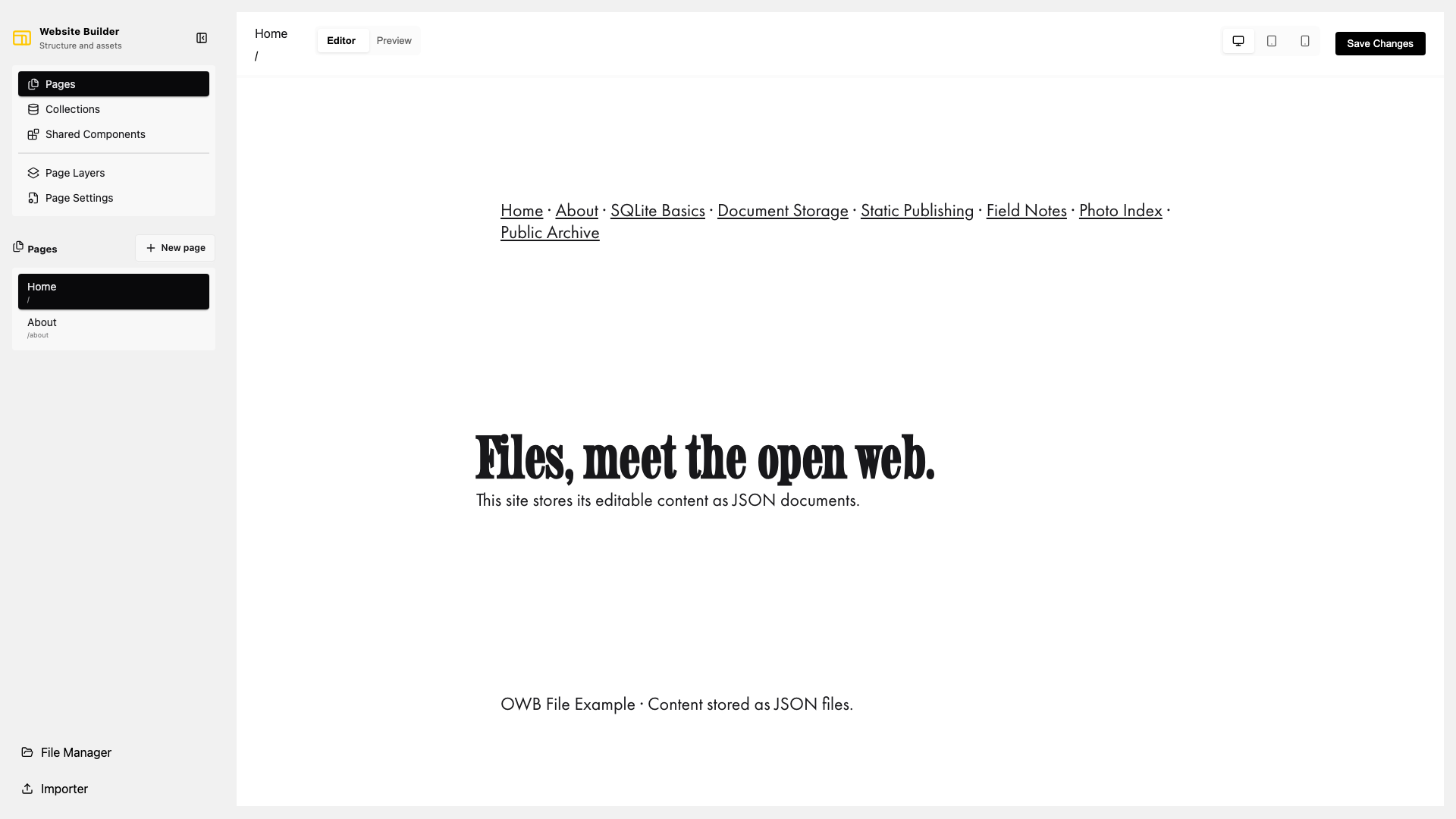
Create a page
- Open Pages in the sidebar.
- Select New page.
- Open Page Settings.
- Replace the generated ID, title, and URL with the intended values.
- Select the ID field's Save button when changing the ID.
- Add and edit sections on the canvas.
New pages start with a generated ID, title, and URL so they can be saved immediately. IDs are normalized to lowercase characters, numbers, hyphens, and underscores. Use / for the home page URL and a leading slash for other URLs, such as /about.
Page settings
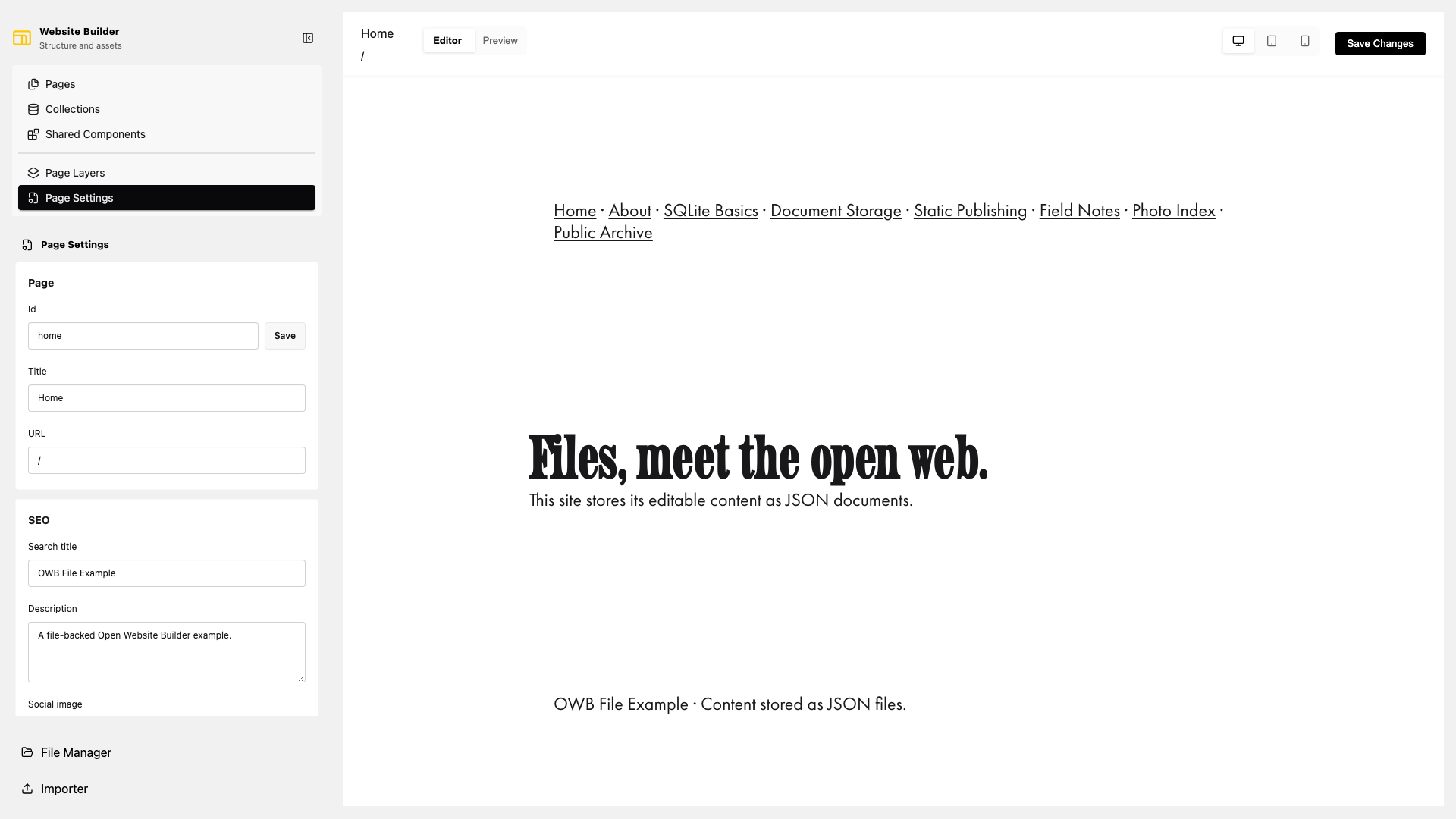
The settings panel includes:
- Id: the backend identity and, for filesystem storage, the JSON filename.
- Title: the editor label and default display title.
- URL: the published route.
- Search title and Description: search result metadata.
- Social image: an image URL selected directly or through File Manager.
- Hide this page from search engines: emits the page's no-index setting.
- Metadata fields: custom values preserved with the page document.
Most fields save when changed. Renaming an ID is explicit because it changes the document identity. The Danger zone permanently deletes the page after a confirmation prompt.
File representation
With the filesystem backend, a page is stored in data/pages/<id>.json:
{
  "type": "page",
  "id": "about",
  "title": "About",
  "url": "/about",
  "seo": {
    "title": "About us",
    "description": "Learn more about the project.",
    "image": "",
    "noIndex": false
  },
  "content": []
}
The editor and direct file editing use the same document. Avoid editing a JSON file and the same page in the browser simultaneously; the last write wins.