Collections
Collections model repeated content such as posts, projects, products, or team members. A collection has one template and many items.
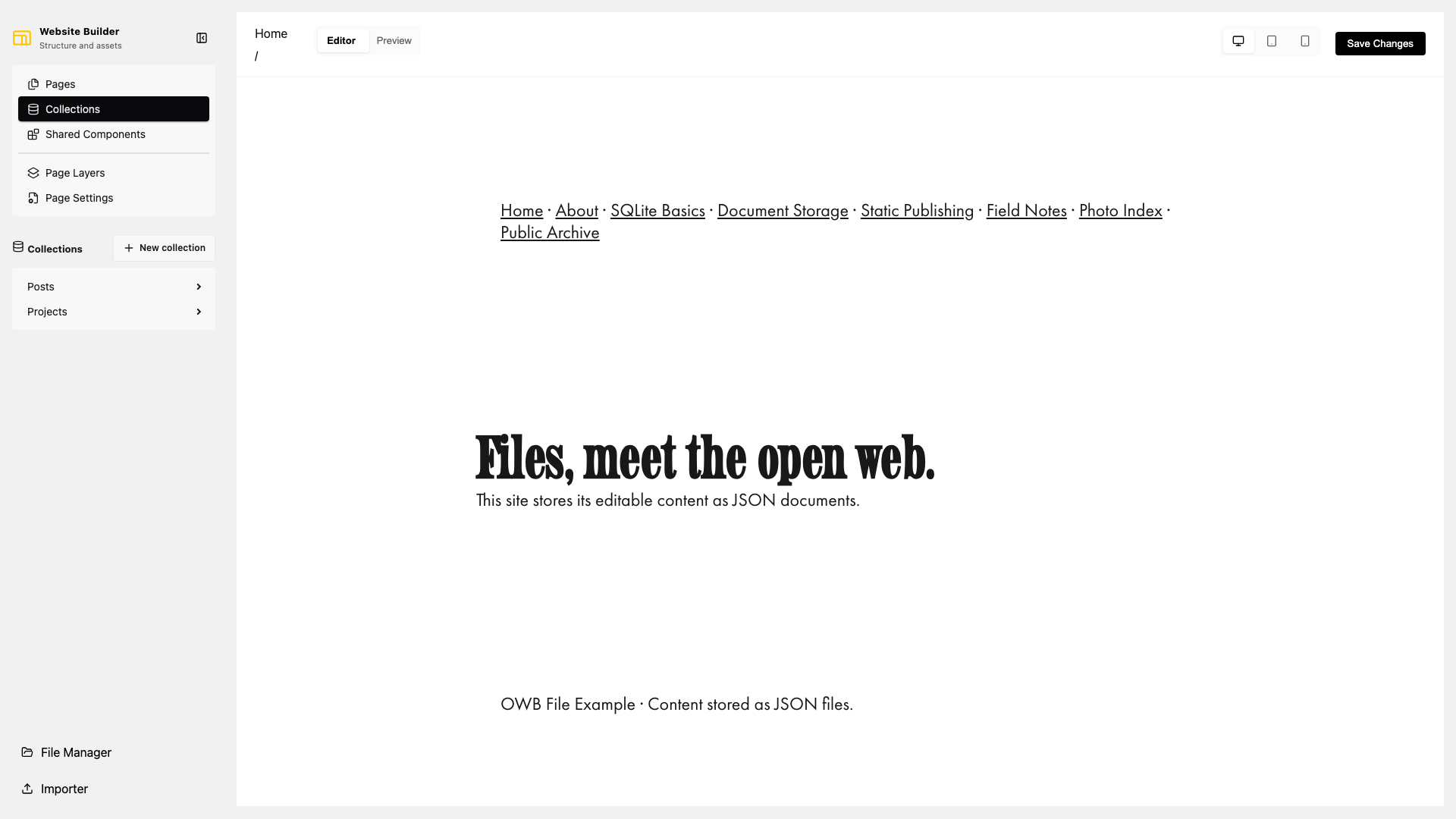
Create a collection
- Open Collections.
- Select New collection.
- Expand the collection and select Settings.
- In Page Settings, set its identity and configure fields.
- Edit the collection template on the canvas.
The template's content is rendered around every item. Add a Collection content block where the item's own content should appear. Template text can reference item values, for example or .
Configure fields
Collection settings contain three related definitions:
- Metadata fields define editor controls for custom item metadata. Supported types are Text, Number, and Image; fields can be required.
- Fields describe the stored item document. Supported schema types are Text, Array of text, and Object.
- Metadata allowlist chooses discovered metadata paths that collection rendering may expose.
Keep the standard title and content fields unless the rendering and backend implementation deliberately use a different contract.
Create collection items
- Expand a collection in the sidebar.
- Select New item.
- Open Page Settings and set the ID, title, excerpt, tags, and URL.
- Fill in configured collection metadata and SEO.
- Edit the item's content on the canvas.
Tags are entered as a comma-separated list. The collection template remains shared; editing an item's canvas changes only the content inserted at the Collection content block.
File representation
The filesystem backend stores each collection in its own directory:
data/collections/posts/
├── _config.json
├── first-post.json
└── second-post.json
_config.json contains the template and field definitions. Each other JSON file is one collection item. SQLite and custom backends preserve the same document shapes without requiring this directory layout.